
Do you want to reset your Vizio TV?
Of course remote would make everything easier. But what if you misplace the remote? Or if it is malfunctioning.
In times when your Television is glitching and not responding to remote commands it is essential to reset it, but how do we do it without the remote?
Do Vizio TVs have a reset button?
The first thing that comes to your mind when you think about how to reset the Vizio TV without the remote is whether there is a reset button on the TV itself. Well, the answer is no. At least not directly.
There are certain methods you could put to use to achieve the effect without a remote, but there is no direct button to reset the Television on-screen or anywhere on it.
Before you could proceed with resetting your television, let us show you how you can restart it. Rebooting Vizio TV is easier and most of the time it could help you solve the time.

How to Restart Vizio TV
Knowing how to reboot Vizio TV can do wonders, if you do not know it already that is. Restarting or rebooting the Television through other ways is even faster than rebooting it through the remote.
To do this first locate your power cord and pull it out from the power source. You can also make use of Switch if your power source has one. Always remember to be careful when doing anything related to electricity and take adequate precautions.
By doing this your Television would shut down immediately due to a loss of power supply. To ensure it cleans all of its caches and temporary data leave it like that for a few minutes.
Most would suggest you do this for about a minute to two, but there is no harm in doing it for longer. Once you are done, put the power cable back into the power source and let the TV start.
Hopefully, the issue that was persisting earlier would be sorted. You can also use the Power button on the back of the Television to shut it off and turn it on as per your wish.
Since we are talking about the power button, We would like to let you know there are generally four buttons in the back of Vizio TV, arranged vertically.
The top one is the Power button with the middle two being the Volume button and the last one Enter, Exit, or Select button. Volume buttons are also useful for navigation and channel selection, as you would need to use them soon.
SEE ALSO: Fix Vizio TV stuck on Downloading updates
How to reset Vizio TV without remote
So you tried restarting but it did not work. Do not worry, there is still a method to reset your TV. You can try it out and hopefully, this would provide you with the desired results.
Be ready to lose all your data in case you decide to reset your television. Some data can be backed up, but if you have forgotten your login credentials for certain apps you would need to use the forget password Feature.
Short answer: You can use three methods to factory reset Vizio TV- by using the physical button on the TV, by using the Smartcast App, or by using Mi remote app.
Follow the step-by-step process for all three methods below.
Method 1. Using buttons to Hard reset Vizio TV
-
Step 1: Holding Volume and Input button.
The first step tells you to reach around and hold the Volume down and Input button simultaneously for some time until options begin to start appearing on your screen.
-
Step 2: Holding the Input button.
Once the dialogue box notifying “To reset to Default, press the Input button in the back panel for 10 seconds.” appears, leave the Volume button and hold the input button for the specified time.
-
Step 3: Waiting for the TV to reboot
If done correctly this would make the TV screen display “Memory is being cleared. The display will reset shortly.” After which all you need to do is wait for the TV to reboot and restore its core firmware.
In case you do not have the Buttons working correctly or you cannot reach them properly for some reason, there is a different method that might work for some. This would require an infrared sensor-enabled Smartphone.
Method 2. Using a smartphone to hard reset Vizio TV
-
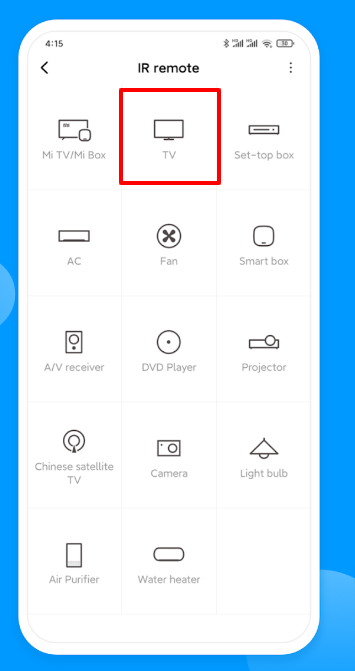
Step 1: Getting the Mi Remote app.
You can click here to download the Mi remote. If you prefer there are a lot of similar Universal remote apps as well.
-
Step 2: Configuring your TV.
Pair your mi remote properly with the TV. As long as you follow the prompts it should be quite easy.
-
Step 3: Entering TV Menu.
After you have configured it, press the digital button and enter your TV’s Menu box. You can see a lot of options and settings here.
-
Step 4: Navigate to System > Reset and Admin.
This would take us to the settings where you can reset the TV.
-
Step 5: Press “Reset TV to factory defaults”.
You might be asked for a pin if you use one, otherwise, proceed and confirm the choice.
Your television would be back to the stock firmware this way, with all of the data cleared up!