
The concept of sound is dynamic and we love to keep our volume in our control. But, sometimes it can be hard if you lose your remote somewhere or someone in the family (probably your sibling) hid it intentionally. This has happened to me a lot of times. And I’m sure you are experiencing the same.
Well, whatever the case, it can be quite frustrating if you can’t find your remote.
That’s, why here I will be discussing the workaround to control the volume on Vizio TV without a remote.
So without any delay let’s get started.
How to turn up volume on Vizio TV without remote
Quick Answer: To turn up the volume on Vizio TV without a remote you can use volume buttons on the TV, universal remote, IR blaster-supported device, or the SmartCast app to adjust the volume with your mobile device.
Method 1: Use the Vizio TV volume button
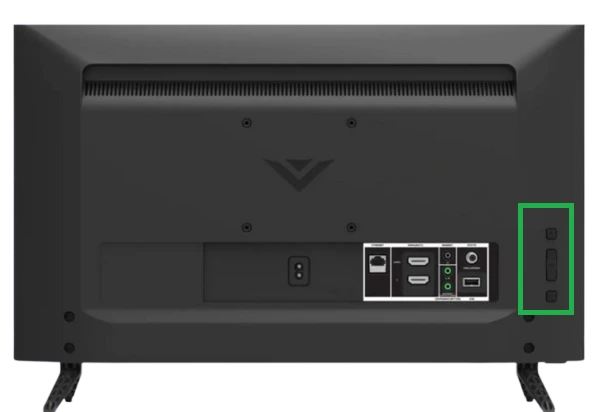
Vizio TV volume buttons are located on the lower right side when you look from the back side of the TV. The exact location varies with the model. You will find three main buttons together: Power, input, and volume buttons.
There must be two arrows. As you can tell, the arrow pointing upwards signifies volume up or high and the arrow pointing downwards signifies volume down or low.
If you are looking for more convenient methods where you do not have to operate volume buttons again and again, we suggest you check the other provided methods.
SEE ALSO: How to Reset Vizio TV without Remote
Method 2: Install the SmartCast app
Vizio TV users can take advantage of the SmartCast app. The SmartCast app connects your TV with your phone, tablet, or even your PC. So the users don’t have to worry if they misplace their remote or it stops working.

- Step 1: Download the SmartCast app
Install the app on your phone. It is available for both iOS and Android users in their respective app stores. So do accordingly, whatever suits you.
- Step 2: Open the SmartCast app
Now in order to pair your TV to the phone, you need to open the SmartCast app and follow the onscreen prompts.
- Step 3: Log in to your Vizio TV
Enter your Vizio ID and password to the app or continue as a guest. The primary user has access to the Vizio credentials so you can ask, to share them with you.
- Step 4: Choose the device you’d like to pair
You will see a list of SmartCast devices around you. Select the device you want to pair with the app and wait for further instructions.
- Step 5: Confirm the connection
A 4-digit number code will display on your TV screen at the top. You just need to enter it on your app in order to pair your TV and Vizio SmartCast app. And it’s done! You can now control your television from your mobile phone.
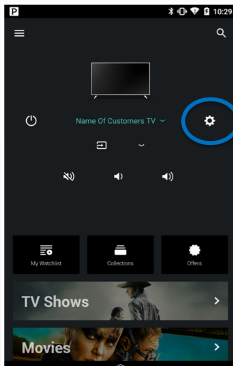
- Step 6: Press the settings button
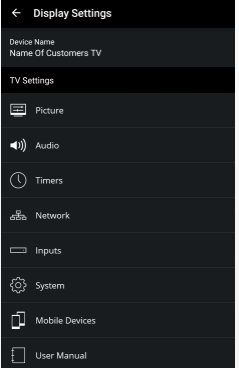
The gear symbol button represents Settings. It must be present on the right side of the application. The settings menu will appear presenting multiple options for your TV.