
We are back with another article titled “How to adjust the brightness on TCL TV”. Now, we all know how important a role brightness plays in one watching experience. We need a different type of vibe while watching different shows.
If you are a new user of TCL TV and facing a problem with adjusting the brightness, you are at the right place. Now without wasting time, let’s get started immediately.
How to adjust brightness on TCL TV
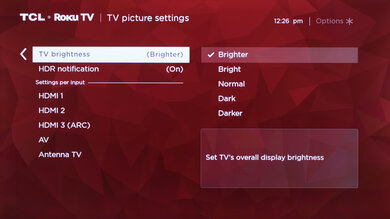
Now before discussing the ways, let’s understand the modes of the display first. There are two types of picture display in TCL TVs. The first one is the TV brightness, which affects the overall brightness of the picture displayed on your screen.
On the other hand, we have picture mode which, provides a picture preset according to the viewer’s preference. Every preset in picture mode holds different roles. Now let’s know how we can change the brightness based on these modes.
Method 1: Adjust brightness
This is the primary method which you need to follow in order to adjust the brightness of your screen. Follow these easy steps to do that.
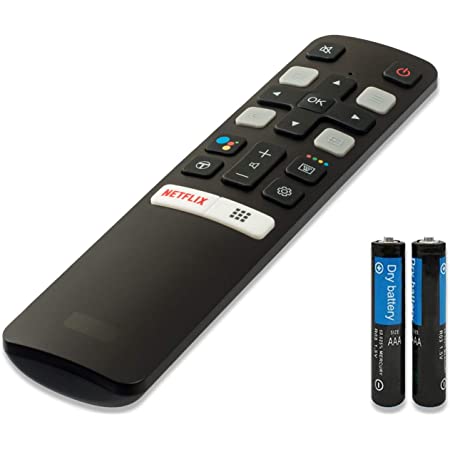
- Step 1: Press the gear icon
This button is present on the extreme right at the lower side of the remote. It is used to get the Settings menu. The settings of your TV will be displayed on the screen.
- Step 2: Select picture setting
Usually, after pressing the gear icon, the picture setting is selected by default. But in your case, if it didn’t then, manually select Picture setting. Many options related to the picture will appear.
- Step 3: Press OK
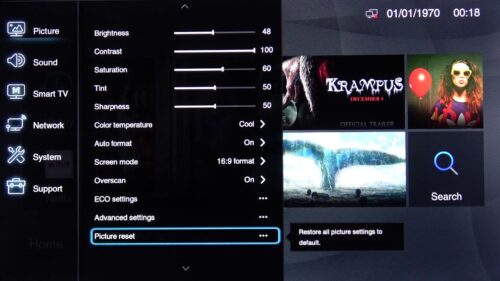
Press the ok button on your remote to confirm the option. You will see a different window open on your screen. A list of options related to pictures.
- Step 4: Select Brightness
Find your required option and navigate down your cursor using the up and down arrow buttons on your remote to select it.
- Step 5: Press ok
Click on ok to confirm the highlighted option. You will be directed to a new window now.
- Step 6: Adjust the brightness
A brightness adjuster will appear on your TV screen. Use the left and right navigation arrows to increase or decrease the brightness. You need to move the brightness scale left or right to increase or decrease the brightness.
- Step 7: Press the back button
After adjusting your brightness according to your need, press the back button present on the remote. The changes will be saved automatically. You will now return back to your home screen.
SEE ALSO: [5 ways] Fix Disney Plus Not Working on TCL TV
Method 2: Adaptive Brightness TCL TV
This feature enables the user to adjust the brightness of the screen according to their surroundings and requirements. It is also a very effective way when it comes to power saving. Using this feature improves the battery of the TV.
- Step 1: Go to settings
Use the arrow on your screen and open the settings. You can also open it, using the remote. The setting dialog box will appear showing, plenty of options.
- Step 2: Select display
Navigate down the button and select display. All the features related to the display will now appear on your screen.
- Step 3: Press ok
After highlighting your preferred option, press ok to confirm it.
- Step 4: Click on adaptive brightness
Your screen will now adjust the brightness according to your environment and activities. You will notice the difference in the colors immediately.
- Step 5: Press the back button
After selecting adaptive brightness, press the back button present on your remote to go back to the home screen.
Method 3: Adjust the picture mode on TCL TV
You can adjust the brightness of the television while streaming a show. You don’t need to pause your show and go back to settings.
- Step 1: Press the * button
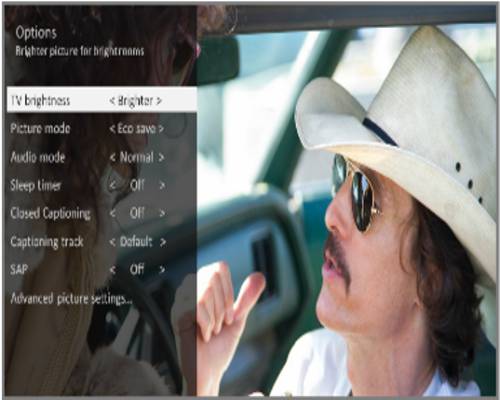
* icon or asterisk button is present on your remote. Find it and press it without pausing your show. An options dialog will appear on the left side. Many features related to the picture will appear on your screen.
- Step 2: Adjust the brightness
Use the side arrows on your remote to adjust the brightness. Always remember that the up and down arrows are used to highlight where side arrows are used to change the setting.
Now to remove the options dialog box, press the asterisk button again to go back and enjoy your show.